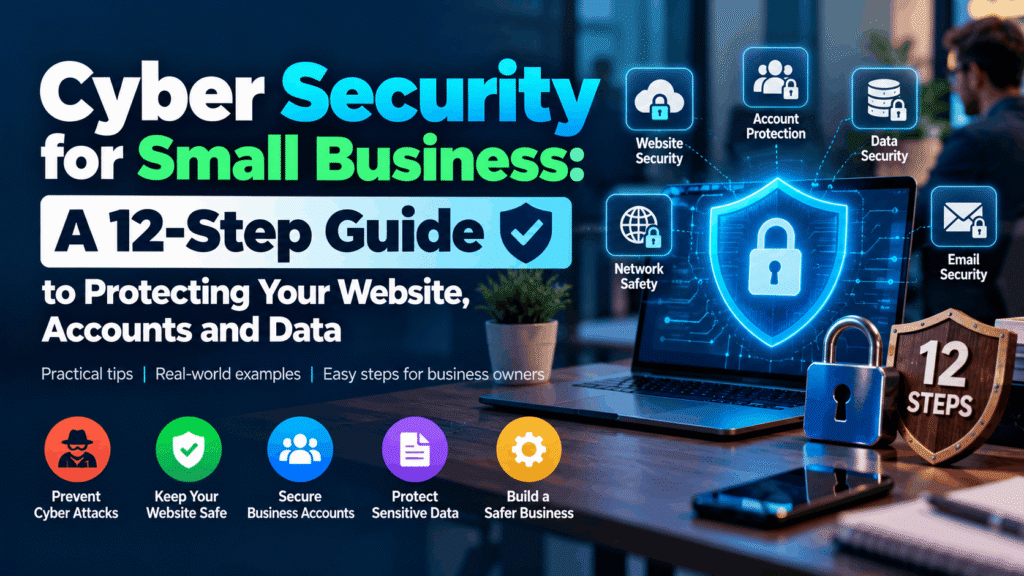
Most cyber attacks on small businesses are not clever. They are ordinary: a fake invoice email, a reused password, a plugin nobody updated, an old employee who still has access to the ad account.
That is good news, because ordinary attacks are stopped by ordinary habits. You do not need a security team or a large budget to close the doors attackers use most often. You need to know what the real threats are, do a short list of things well, and check them regularly.
This guide covers the most common cyber security problems businesses face, the precautions that stop them, a step-by-step plan you can implement yourself, a WordPress website checklist, a “what to do if you are hacked” playbook, and where professional help makes sense.
Quick answer: Cyber security for a small business comes down to a handful of controls done consistently: unique passwords stored in a password manager, multi-factor authentication on every important account, automatic updates, tested offsite backups, protected email, limited access for people and vendors, staff awareness of phishing, and a written plan for what to do when something goes wrong.
In this guide
- Why cyber security matters more than ever
- Eight real cyber security problems and how to solve each one
- Three illustrative scenarios
- The 12-step plan to secure your business yourself
- A 30-day implementation schedule
- WordPress website security checklist
- Securing your marketing and social media accounts
- What to do if you have been hacked
- Free and low-cost security tools
- How to measure whether your security is working
- When to bring in a professional
- Our cyber security services and current offers
- Frequently asked questions
Why Cyber Security Matters More Than Ever
Attacks are getting more expensive, and they are speeding up.
IBM’s 2026 Cost of a Data Breach Report put the global average cost of a data breach at a record $4.99 million, a 12% rise on the previous year, and the average in the United States at $11.5 million. Organizations took an average of 247 days to identify and contain a breach, which was longer than the year before. IBM also found that phishing, including voice and text-message phishing, was the most common way in and carried the highest average cost, at $5.29 million. And about one in four malicious breaches that year involved AI-enabled attacks, which added roughly $1 million to the cost.
A caution on how to read those numbers: they are averages from IBM and Ponemon’s research sample, which skews toward larger organizations and larger breaches. A small business will rarely face a seven-figure loss, but the damage is still serious relative to its size: lost sales, frozen accounts, emergency fixes, customer trust and sometimes legal obligations. For a business with thin margins, one incident can be the difference between a good year and closing down.
Websites are a favorite target too. Patchstack’s State of WordPress Security 2026 report counted 11,334 new vulnerabilities in the WordPress ecosystem in 2025, 42% more than the year before. About 91% were in plugins, not in WordPress itself, and nearly half (46%) had no fix available from the developer when they were publicly disclosed. (Patchstack sells WordPress security products, so read the figures with that in mind, but they are widely cited and consistent with what we see in practice.) The lesson is not that WordPress is unsafe. It is that every plugin you install is a door, and doors need to be maintained.
Finally, attackers have made their methods cheaper. Generative AI helps criminals write convincing phishing emails in any language, clone voices for phone scams and scale their attempts. The old advice to “look for spelling mistakes” no longer works well on its own.
Eight Real Cyber Security Problems and How to Solve Each One
Problem 1: Phishing and fake-invoice emails
What it looks like: An email, text message or call that appears to come from your bank, a supplier, a courier, your boss or a software vendor. It asks you to click a link, log in, open an attachment, change bank details or pay an urgent invoice.
Why it works: It targets people, not technology. It creates urgency and borrows trust. A variant called business email compromise copies a real contact’s writing style and asks for a payment or a change of account number.
How to prevent it: – Treat any request involving money, passwords or sensitive data as unverified until you confirm it through a second channel, such as calling a known number (not the one in the email). – Never approve changed bank details by email alone. Require a call-back to a number you already had. – Hover over links before clicking, and go to websites by typing the address or using a bookmark. – Be suspicious of urgency, secrecy and unusual requests even when the message looks perfect. – Turn on spam and phishing filters, and report suspicious messages to your IT contact or email provider. – Run short, regular staff reminders with real examples. Ten minutes every quarter beats a long annual lecture.
Problem 2: Weak, reused and stolen passwords
What it looks like: One compromised password opens many doors, because the same one is used for email, social media, banking and the website admin.
Why it happens: Attackers buy leaked password lists and automatically try them on other sites. If you reuse a password, one old breach becomes a breach of everything.
How to prevent it: – Use a password manager to generate and store a unique, long password for every account. – Create one strong passphrase for the password manager itself, and protect it with multi-factor authentication. – Turn on multi-factor authentication (MFA) for email, banking, hosting, domain registrar, website admin, ad accounts and social media. Prefer an authenticator app, a passkey or a hardware key over text-message codes. – Check whether your email addresses appear in known breaches using a service such as Have I Been Pwned, and change affected passwords.
Problem 3: Ransomware
What it looks like: Files or systems suddenly become locked, and a message demands payment to unlock them. Some attackers also steal data first and threaten to publish it.
Why it happens: Usually a phishing click, an exposed remote-access service or an unpatched system gives the attacker an entry point, then they spread.
How to prevent it: – Keep tested, offline or immutable backups, so a ransom is not your only way back. A backup you have never restored is a hope, not a plan. – Keep systems and software updated, and remove software you no longer use. – Limit admin rights so one compromised account cannot reach everything. – Use reputable endpoint protection on laptops and desktops. – Have a written plan for who to call and what to shut down first (see the playbook below).
Problem 4: Outdated software and vulnerable plugins
What it looks like: A website, plugin, theme, router or business app that has not been updated for months, with known security flaws that attackers scan for automatically.
Why it happens: Updates feel optional and risky, so they get postponed. Attackers know this and exploit published flaws quickly, often within hours or days of disclosure.
How to prevent it: – Turn on automatic updates wherever it is safe to do so, and schedule a regular maintenance window for the rest. – Delete unused plugins, themes and apps instead of just deactivating them. – Install only well-maintained plugins from reputable sources, and avoid pirated or “nulled” themes, which often contain hidden malware. – Test major updates on a staging copy before pushing them to the live site. – Keep a simple inventory of what you run and who is responsible for updating it.
Problem 5: Hacked websites, malware and SEO spam
What it looks like: Your website redirects visitors somewhere strange, shows pharmacy or gambling links, gets flagged by browsers as unsafe, slows down, or shows pages you never created. Sometimes nothing seems wrong until Google or customers warn you.
Why it happens: Outdated plugins, weak admin passwords, compromised hosting accounts or stolen credentials. Attackers often hide malware for months and use your site to attack others or to steal your search rankings.
How to prevent it: Follow the WordPress checklist later in this guide: updates, minimal plugins, strong admin protection, a web application firewall, malware scanning and offsite backups. Also check Google Search Console regularly, because its Security Issues report can warn you before customers do.
Problem 6: Email spoofing and domain abuse
What it looks like: Customers receive scam emails that appear to come from your domain, or your genuine emails land in spam.
Why it happens: Without email authentication, anyone can forge your domain in the “From” line.
How to prevent it: Set up SPF, DKIM and DMARC for your domain. Since 2024, Google and Yahoo have required bulk senders (5,000 or more messages a day) to authenticate with SPF and DKIM and publish a DMARC policy, and Microsoft began enforcing similar rules for Outlook.com in 2025. Even if you send far fewer emails, setting these up protects your brand from impersonation and improves email delivery. Start DMARC at a monitoring policy, review the reports, and tighten it once legitimate senders are all aligned.
Problem 7: Too much access for too many people
What it looks like: Former employees, freelancers and agencies still have admin access. Everyone shares one login. Nobody is sure who can change the ad account or the DNS settings.
Why it happens: Access is granted quickly and never reviewed.
How to prevent it: – Give each person their own account, never a shared password. – Apply least privilege: people get the lowest access level that lets them do their job. – Remove access the day someone leaves or a project ends. – Review who has access to your website, domain, hosting, analytics, ad accounts, email and social pages at least twice a year. – Use the platforms’ own role and partner-access features (for example, ad account and business manager roles) instead of handing over passwords.
Problem 8: Lost devices, public Wi-Fi and unmanaged personal devices
What it looks like: A laptop is stolen from a car, an employee works from an airport network, or business email is on a family tablet without a screen lock.
How to prevent it: – Turn on full-disk encryption on laptops and phones, require screen locks, and enable remote wipe. – Keep operating systems updated on every device that touches business data. – Avoid doing sensitive work on public Wi-Fi, or use a reputable VPN or your phone’s hotspot. – Write a short rule for personal devices: what is allowed, what must be installed and what happens if a device is lost.
Three Illustrative Scenarios
These are composite examples to show how incidents unfold, not accounts of specific clients.
Scenario 1: The fake supplier invoice
A small distribution company receives an email from what looks like a regular supplier, saying their bank details have changed. The accounts person updates the details and pays an invoice. A week later the real supplier asks why they have not been paid.
What would have prevented it: A simple rule that bank-detail changes are confirmed by phone using a known number, plus MFA on the email account the attacker had compromised to see the real conversation.
Scenario 2: The forgotten plugin
A service business runs a WordPress site with 28 plugins, several unused. One outdated plugin has a known flaw. Attackers inject hidden links to scam sites. Search traffic drops, Google flags the site and the owner cannot work out why.
What would have prevented it: Fewer plugins, automatic updates, a firewall and malware scanner, a monitored backup and a quarterly review. Recovery involves cleaning the infected files, removing the backdoor, resetting every password and requesting a review from Google.
Scenario 3: The hijacked ad account
A marketing manager’s personal social media account is compromised through a reused password. Because it is linked to the company’s business ad account, the attacker adds themselves as an admin and starts running scam ads on the company’s card.
What would have prevented it: MFA on the personal and business accounts, unique passwords, budget limits and spend alerts on the ad account, and a short list of named admins reviewed regularly.
The 12-Step Plan to Secure Your Business Yourself
This plan follows the same logic as widely used frameworks such as the US government’s CISA basic guidance and the NIST Cybersecurity Framework 2.0, which organizes security into six functions: govern, identify, protect, detect, respond and recover. You do not need to read a framework to benefit. Work through these steps in order.
Step 1: List what you need to protect
Write down your important assets: website, domain, email, customer data, financial records, ad and social accounts, shared drives and devices. Note where customer or payment information lives. You cannot protect what you have not listed.
Step 2: Fix your passwords with a password manager
Choose a reputable password manager, move your accounts into it, and replace every weak or reused password with a unique generated one. Start with email, banking, domain registrar, hosting and website admin.
Step 3: Turn on multi-factor authentication everywhere
Enable MFA on every account that supports it, starting with email, because email can reset all your other passwords. Prefer authenticator apps, passkeys or security keys. Keep backup recovery codes somewhere safe and offline.
Step 4: Update everything and automate it
Enable automatic updates for operating systems, browsers, apps and your website platform where possible. Remove software you no longer use. Keep a short list of items that need manual updates and put them on a calendar.
Step 5: Back up your data using the 3-2-1 rule
Keep 3 copies of important data, on 2 different types of storage, with 1 copy offsite and ideally offline or immutable so ransomware cannot encrypt it. Automate the backup. Test a restore at least every quarter, because untested backups fail more often than people expect.
Step 6: Protect your email and domain
Set up SPF, DKIM and DMARC. Turn on spam and phishing protection. Lock your domain registrar account with MFA, and enable registrar lock so your domain cannot be transferred without approval. Losing a domain or DNS control is one of the most damaging and least discussed incidents.
Step 7: Limit access and review it
Give people individual accounts and the minimum access they need. Remove old accounts immediately. Keep a one-page list of who has access to what, and review it every six months.
Step 8: Secure your website
Follow the WordPress checklist below, or the equivalent for your platform. Use HTTPS everywhere, a firewall, malware scanning and offsite backups.
Step 9: Secure your devices and network
Encrypt laptops and phones, enable screen locks and remote wipe, install endpoint protection, change default router passwords, use WPA2 or WPA3 on your Wi-Fi, and keep a separate guest network for visitors.
Step 10: Train your team in plain language
Teach people the five or six attacks they will actually meet: fake invoices, password reset scams, fake delivery messages, voice-cloning calls, malicious attachments and “urgent request from the boss.” Make reporting easy and blame-free, because people hide mistakes when they fear punishment, and hidden mistakes become big incidents.
Step 11: Check your vendors and tools
List the software and service providers that hold your data (website host, email, CRM, payment tools, agencies, freelancers). Ask how they protect it, whether they support MFA and what they will do if they are breached. Remove tools you no longer use.
Step 12: Write a one-page incident plan
Decide in advance: who is in charge, who to call (IT contact, hosting provider, bank, insurer, legal adviser), which systems to isolate first, where backups are and how you will inform customers if needed. Print it or keep a copy offline so you can reach it during an incident.
A 30-Day Implementation Schedule
| Week | Focus | What you complete |
| Week 1 | Accounts | Password manager set up, MFA on email, banking, domain, hosting and website admin |
| Week 2 | Updates and backups | Automatic updates on, unused software removed, 3-2-1 backups running, one test restore |
| Week 3 | Email, website and access | SPF, DKIM and DMARC published, website hardened, access list reviewed and old accounts removed |
| Week 4 | People and planning | Staff briefing delivered, devices encrypted, vendor list written, incident plan drafted |
After the first month, put a recurring monthly review on the calendar: updates applied, backups restored, access reviewed, security alerts checked.
WordPress Website Security Checklist
Most business websites run on WordPress, and most WordPress problems start in plugins. This checklist covers the essentials.
Updates and plugins – [ ] WordPress core, themes and plugins are updated, with automatic updates enabled where safe – [ ] Unused plugins and themes are deleted, not just deactivated – [ ] Every plugin is actively maintained and comes from a reputable source – [ ] No pirated or “nulled” themes or plugins – [ ] Updates are tested on a staging site first for critical sites
Logins and access – [ ] No username called “admin” – [ ] Strong unique passwords and MFA for all administrator and editor accounts – [ ] Login attempts are limited and brute-force protection is on – [ ] Only people who need admin rights have them, and former staff and agencies are removed – [ ] File editing from the dashboard is disabled
Protection and monitoring – [ ] HTTPS is enforced across the whole site with a valid certificate – [ ] A web application firewall is active (through your host, a CDN or a security plugin) – [ ] Regular malware scans and file-change monitoring are running – [ ] Google Search Console is verified, and the Security Issues report is checked – [ ] Security headers are configured, and XML-RPC is disabled if you do not use it
Backups and recovery – [ ] Daily or weekly automated backups stored offsite, not only on the same server – [ ] A restore has been tested in the last three months – [ ] You know how to contact your host quickly, and your hosting account has MFA
Hosting and domain – [ ] A reputable host with isolation between sites, current PHP versions and server-level security – [ ] Domain registrar account protected with MFA and registrar lock – [ ] DNS records reviewed so there are no unknown entries
If you use a platform other than WordPress, the same principles apply: keep it updated, minimize add-ons, protect admin logins, back up offsite and monitor.
Securing Your Marketing and Social Media Accounts
Marketing accounts are valuable targets because they hold budget, customer data and public reputation. A hijacked ad account can burn money in hours, and a hijacked social page can damage trust overnight. These steps matter especially for businesses that run ads and publish content.
- Use MFA on every platform: Google (Ads, Analytics, Search Console, Business Profile), Meta Business and ad accounts, LinkedIn, TikTok, YouTube, email marketing tools and your CRM.
- Never share passwords. Add people through each platform’s built-in user roles or partner access, with the lowest permission they need.
- Own your accounts. Make sure the business, not an agency or an employee’s personal account, is the owner. If you work with an agency, they should be granted access, not hold ownership.
- Audit access twice a year. Remove former employees, old agencies and unknown users.
- Protect billing. Set daily budget limits and spend alerts, and review payment methods and billing contacts regularly.
- Keep recovery details current. Use a monitored business email and phone number for recovery, not a personal inbox you might lose.
- Watch for unusual activity: new admins, changed payment details, unfamiliar campaigns, login alerts from unknown locations or sudden spending spikes.
- Secure the tools around them: link shorteners, scheduling tools and third-party apps connected to your accounts should be reviewed and removed if unused.
What to Do If You Have Been Hacked
Speed and calm matter. Use this order as a starting point, and adapt it to your situation.
- Contain it. Disconnect affected devices from the network, take a compromised website offline or into maintenance mode, and stop any ongoing payments if finance is involved.
- Change credentials from a clean device. Reset passwords for email first, then banking, hosting, website admin, ad accounts and other critical services. Sign out all other sessions and revoke unknown access tokens and connected apps.
- Turn on MFA anywhere it was missing.
- Contact the right people: your bank if money may be affected, your hosting provider, your IT or security contact, your cyber insurer if you have one and legal counsel if personal data may be involved.
- Preserve evidence. Keep logs, emails and screenshots. Do not wipe everything before someone has looked at what happened.
- Find and remove the cause. For a hacked website this means cleaning infected files, removing hidden admin users and backdoors, updating everything and restoring from a known clean backup if needed.
- Restore and verify. Bring systems back from clean backups, test that everything works and watch for repeat activity.
- Notify as required. Depending on where you operate and what data was involved, you may have legal duties to tell customers or regulators. Get proper advice.
- Report it. In the United States, you can report internet crimes to the FBI’s Internet Crime Complaint Center (ic3.gov). Elsewhere, report to your national cybercrime authority.
- Learn from it. Write down what happened, how it was found and what will change.
If a website has been flagged by Google, clean it fully first, then request a review in Search Console so warnings are removed.
Free and Low-Cost Security Tools
You can cover a lot of ground without expensive software.
| Need | Examples of tools to consider |
| Password manager | Bitwarden, 1Password, or the manager built into your browser or operating system |
| Multi-factor authentication | Authenticator apps, passkeys, hardware security keys |
| Breach check | Have I Been Pwned |
| Website security (WordPress) | A reputable security plugin with firewall and scanning, plus your host’s built-in protection |
| Web firewall and DNS | A content delivery network with a free or low-cost firewall tier |
| Backups | Your host’s backups plus an offsite backup plugin or service |
| Email authentication checks | Free SPF, DKIM and DMARC checkers such as MXToolbox |
| Search and site health | Google Search Console (free) |
| Endpoint protection | The built-in protection in current Windows and macOS, or a reputable paid endpoint product |
Check each tool’s current features and pricing before you commit. Tools change often, and a free tool you do not configure is no better than none.
How to Measure Whether Your Security Is Working
Security you cannot measure tends to drift. Track a few simple numbers every month:
| Metric | Target |
| Accounts with MFA enabled (important accounts) | 100% |
| Time to apply critical updates | Days, not months |
| Last successful backup restore test | Within the last 90 days |
| Staff phishing reports and clicks | Reports rising, clicks falling |
| Users with admin access | Only those who need it, reviewed twice a year |
| Open security alerts | Reviewed and resolved on a schedule |
| Domain and email authentication | SPF, DKIM and DMARC passing |
When to Bring in a Professional
Doing the basics yourself is realistic and valuable. But some situations call for experts:
- You handle payment cards, health records or other regulated data
- You have been hacked and cannot find the cause or the backdoor
- You need penetration testing, a formal risk assessment or compliance certification
- You run many sites, users or locations and need continuous monitoring
- Your business depends on systems that cannot afford downtime
A good provider explains risks in plain language, shows you what they will do and how they will measure it, gives you ownership of your accounts and does not rely on fear to sell. If a company promises “100% security” or guaranteed protection, walk away. No one can honestly promise that.
Our Cyber Security Services
At Digitalscafe, we focus on the parts of security that sit closest to your website, email and marketing accounts, the places where our clients’ businesses are most exposed day to day.
Website security audit. A review of your WordPress or other site: plugins, themes, versions, admin users, login protection, backups, HTTPS, headers and exposure to known issues, with a prioritized fix list.
Website hardening and maintenance. Ongoing updates, firewall and malware scanning setup, login protection, offsite backups with tested restores and monthly security reports.
Malware cleanup and recovery support. Help identifying and removing infections from a compromised website, restoring clean files and requesting a review from search engines.
Email security setup. SPF, DKIM and DMARC configuration, monitoring and tuning, so your domain is harder to spoof and your emails reach inboxes.
Marketing account security review. An audit of access, MFA, roles, billing protection and recovery settings across Google, Meta, LinkedIn, analytics and your CRM, plus a clean, documented access list.
Staff awareness sessions. Short, practical briefings on phishing, password habits and what to do when something looks wrong.
Security-minded digital marketing. Because we run ads, SEO and social media for clients, we set up accounts, permissions and tracking so that growth does not come at the cost of exposure. See our digital marketing services.
What We Refer to Trusted Specialists For
Some cybersecurity requirements need specialist expertise or dedicated security infrastructure. When a project requires penetration testing, 24/7 security operations monitoring, compliance certification or incident forensics, Digital’s Cafe can help connect clients with trusted specialist partners where appropriate.
Our role is to understand your business requirements, identify the type of specialist support you need and help you move toward the right solution.
Current Cyber Security Offers
Free Website Security Health Check
Give your website a basic security review without the cost of a full security audit.
We check visible security basics such as HTTPS, security configuration, website technology, common exposure points and basic website protection practices. You receive a short, easy-to-understand report highlighting key priorities and recommended next steps.
Price: Free
Turnaround: 2–3 business days
Best for: Small businesses, service companies, e-commerce websites and startups.
Get Your Free Website Security Check
Free Marketing Account Access Review
Your website isn’t the only thing that needs protection.
We review access to your important digital marketing accounts, including Google, Meta, social media, analytics and advertising platforms, and help identify unnecessary users, outdated access or potential account-management risks.
You’ll receive a simple summary of areas that should be reviewed or improved.
Price: Free
Best for: Businesses working with employees, agencies, freelancers or multiple marketing teams.
Request Your Free Account Access Review
Security Starter Package
For businesses that need help putting basic security controls in place, our Security Starter Package focuses on practical improvements rather than unnecessary complexity.
Depending on your setup, the package can include:
- Multi-factor authentication (MFA) setup
- Business email security configuration
- SPF, DKIM and DMARC guidance
- Website backup configuration
- Basic account access review
- Security best-practice guidance
- One employee security awareness session
Pricing: Tailored to your business requirements.
Because every website and business environment is different, we first review your requirements and then provide a clear quotation.
Request a Security Starter Quote
Cyber Security + Digital Marketing
Your marketing accounts, website and customer data are valuable business assets. That’s why security should be considered alongside your digital marketing activities.
If Digital’s Cafe manages your SEO, social media, paid advertising, Google Business Profile or other digital marketing activities, we can also help you review basic access and security practices across your digital presence.
Pricing: Tailored package based on your selected digital marketing services and security requirements.
Ask About Our Digital Growth & Security Package
Important Website Note
For transparency, Digital’s Cafe does not position this starter service as a penetration test, formal compliance audit, 24/7 SOC service or digital-forensics investigation. Where specialist expertise is required, we can refer or coordinate with appropriate specialist partners.
Frequently Asked Questions
What is cyber security for small business?
It is the set of practices, tools and habits that protect a business’s website, email, accounts, devices and data from theft, damage and unauthorized access. For a small business it focuses on practical basics such as strong passwords, MFA, updates, backups, email protection and staff awareness.
Are small businesses really targeted by hackers?
Yes. Attackers often use automated tools that look for weaknesses on any website or account, regardless of size, and small businesses are attractive because their defenses are usually thinner. Many attacks are opportunistic, not personal.
What is the first thing a small business should do for cyber security?
Turn on multi-factor authentication for email and your most important accounts, and start using a password manager. These two steps stop a large share of common account takeovers.
How much does cyber security cost for a small business?
It varies with your size, tools and risk. Many essential controls (MFA, password managers, updates, backups, email authentication) are free or low-cost and mainly take time. Costs rise for managed monitoring, compliance work and specialist services. Ask for a scoped quote based on your actual setup.
How do I know if my website has been hacked?
Common signs include unexpected redirects, strange pages or links (especially pharmacy or gambling content), browser or Google security warnings, sudden traffic or ranking drops, unknown admin users, a slow site and your host suspending your account. Google Search Console’s Security Issues report can also alert you.
How do I secure a WordPress website?
Keep WordPress, plugins and themes updated, delete unused ones, use strong passwords and MFA for admins, limit login attempts, run a firewall and malware scanner, enforce HTTPS, store backups offsite and test restores. Most vulnerabilities are in plugins, so fewer, well-maintained plugins is a strong rule.
What is multi-factor authentication and why is it important?
MFA asks for a second proof of identity (such as a code from an authenticator app, a passkey or a security key) in addition to your password. If your password is stolen, the attacker still cannot log in. Prefer authenticator apps or security keys over text-message codes where possible.
What is the 3-2-1 backup rule?
Keep three copies of your data, on two different types of storage, with one copy offsite, ideally offline or immutable. Test restoring from the backup regularly.
What are SPF, DKIM and DMARC?
They are email authentication records. SPF lists which servers may send email for your domain, DKIM adds a digital signature to your messages, and DMARC tells receiving servers what to do when a message fails those checks and sends you reports. Together they make it harder for criminals to impersonate your domain.
Do I need cyber insurance?
It can help cover costs such as incident response, legal support and downtime, but it does not replace good security, and insurers often require specific controls such as MFA and tested backups. Speak with a qualified insurance adviser about what fits your business.
What should I do if I clicked a phishing link?
Disconnect from the network if you entered credentials or opened an attachment, change the affected passwords from a clean device, turn on MFA, tell your IT contact or provider, check for unusual account activity and report the message. Acting quickly limits the damage.
How often should I update my security?
Apply critical updates as soon as possible and routinely update everything else on a regular schedule. Review access, backups and settings monthly or quarterly, and run a fuller review at least once a year or after major changes.
Can AI help cyber criminals and defenders?
Yes, both. Attackers use AI to write more convincing phishing messages and to scale attacks. Defenders also use AI and automation for detection and response, and IBM’s 2026 research found organizations using AI and automation in security operations had lower breach costs on average. Basic hygiene still matters most.
Can you guarantee my website will never be hacked?
No honest provider can. Security reduces risk and speeds up recovery, but it cannot remove risk entirely. What we can commit to is a clear process, strong fundamentals, transparent reporting and fast support when something looks wrong.
Do you offer penetration testing or compliance certification?
We refer these to specialist partners and can coordinate the process
Related Searches People Ask
- cyber security checklist for small business
- how to protect your business from cyber attacks
- how to secure a WordPress website
- what to do after a website is hacked
- how to protect Google Ads and Facebook ad accounts
- how to set up DMARC
- best password manager for small business
- ransomware protection for small business
- phishing prevention tips for employees
- cyber security services for small business
Key Takeaways
- Most attacks on small businesses are ordinary and preventable: phishing, reused passwords, outdated plugins and excess access.
- Start with MFA, a password manager, automatic updates and tested offsite backups.
- Protect your email domain with SPF, DKIM and DMARC.
- Treat your website, ad accounts and social pages as business assets and secure them the same way.
- Limit access, review it twice a year and remove people the day they leave.
- Write a one-page incident plan before you need it.
- Use professionals for regulated data, forensic work, penetration testing and continuous monitoring, and avoid anyone who promises total security.
Not Sure Where Your Business Stands?
Tell us about your website, email and marketing accounts. We will review the basics, show you what is exposed and give you a clear, prioritized plan you can follow yourself or have us handle.
- Get your free website security health check
- Book a free 30-minute call
- Call or WhatsApp: +92-306-4915519
- Email: info@digitalscafe.com
- Visit digitalscafe.com
This article is general information, not legal, compliance or professional security advice. Threats, tools, laws and prices change, so confirm current requirements for your situation. Statistics are cited from IBM’s 2026 Cost of a Data Breach Report and Patchstack’s State of WordPress Security 2026 and are averages that may not match any individual business. Scenarios are illustrative composites.